
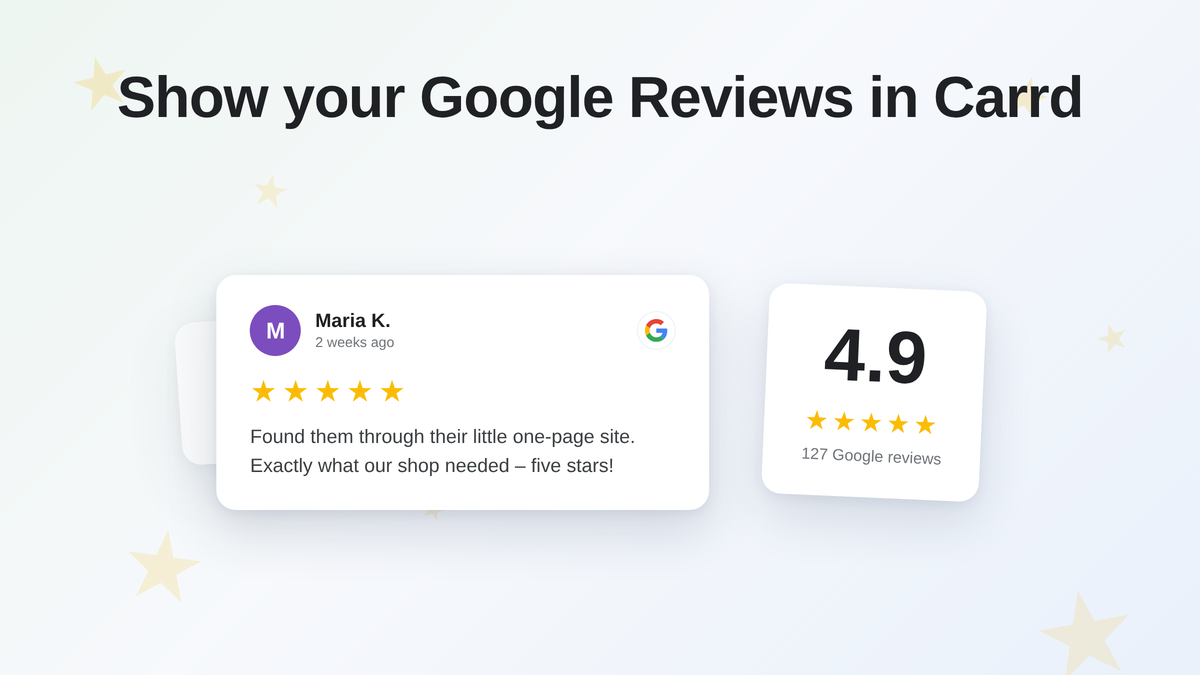
You collected some nice Google reviews for your business. Now you want them on your Carrd site, where visitors actually see them. There are three realistic ways to embed Google reviews in Carrd – and the best one depends on your Carrd plan, your traffic and how much you care about the reviews updating themselves. We’ll show all three, cheapest first, and give you a clear recommendation at the end.
TL;DR
- Free plan: copy 2–3 real reviews into styled Text elements, add a link to your Google Business Profile. Free, static, solid.
- Best for most businesses: an Elfsight Google Reviews widget 🏆 pasted into an Embed element – auto-syncing, polished, ~$6/month beyond the free tier.
- Widgets and DIY code need Carrd Pro Standard ($19/yr) for the Embed element – the free plan and Pro Lite don’t have it.
- DIY with the Places API: possible, limited to five reviews, not worth it.
- Never fake reviews. Link your real profile and let it speak for you.
Who is this for?
- You run a small business, freelance gig or side project with a Google Business Profile and at least a handful of reviews
- Your website is a Carrd site (Free or Pro, both are covered below)
- You want social proof on your one-pager
No coding skills needed for the first two methods. The third one is for tinkerers.
The three methods at a glance
| Method | Cost | Carrd plan needed | Auto-updates | Best for |
|---|---|---|---|---|
| 1. Static quotes or screenshots | Free | Any, even free | No | Free plan users, few reviews |
| 2. Review widget (Elfsight & co.) | Free tier, paid from ~$6/mo | Pro Standard ($19/yr) | Yes | Businesses that want fresh reviews |
| 3. DIY custom code | Free-ish | Pro Standard ($19/yr) | Sort of | Tinkerers |
Why Pro Standard? Methods 2 and 3 need Carrd’s Embed element which is a Pro Standard feature – the free plan and Pro Lite don’t include it. More on that below.
Method 1: Add reviews manually (works on the free plan)
The simplest way to add Google reviews to Carrd: copy them over by hand. No widget, no plan upgrade, works everywhere. The trade-off is obvious – when a new five-star review comes in, your site doesn’t know about it.
You have two options here.
Option A: Styled text quotes (recommended)
Rebuild the review with Carrd’s own elements so it matches your design:
- In the Carrd editor, click + and add a Text element
- Paste the review text, then add a line with the star rating (★★★★★ works fine as plain text) and the reviewer’s first name
- Wrap it in a Container with a subtle background so it reads as a card
- Duplicate the container for your other reviews
If you want all review cards to look identical without styling each one, set them up once with element styles – we wrote a full guide on working with element styles in Carrd.
Option B: Screenshots
Screenshot the review card straight from Google Maps, crop it and add it as an Image element. It looks unmistakably like a real Google review, which is the point. Downsides: screenshots can look blurry on retina screens, and a white Google card on your dark site design sticks out like a sore thumb.
ℹ️ Whichever option you pick, add a small link or button that says “Read all reviews on Google” pointing to your Business Profile. It backs up your quotes with a source anyone can check – and nudges happy customers toward leaving their own review.
⚠️ Only use real reviews, quoted accurately. Made-up testimonials violate Google’s policies and consumer protection law in most countries. And since your site links to your actual Google profile, visitors will notice if the reviews don’t exist there.
One caveat for free plan users: Carrd’s free plan has a 50-element limit per site. A styled review card eats 2–3 elements, so five reviews can quickly claim a third of your budget. Two or three strong quotes usually do the job.
Pros
- Free, works on every Carrd plan
- Full design control – the reviews look like part of your site
- No third-party scripts, nothing external loading
Cons
- Doesn’t update itself, ever
- Manual work every time you want to rotate in a new review
- Costs elements on the free plan
How do I embed auto-updating Google reviews in Carrd?
For most businesses this is the best way to embed Google reviews in Carrd. A review widget service connects to your Google Business Profile, pulls in your reviews automatically and gives you a snippet of code. You paste that snippet into a Carrd Embed element, and from then on your site always shows your latest reviews.
The (small) catch: the Embed element requires Carrd Pro Standard at $19 per year. Pro Lite ($9/yr) doesn’t include it. If you’re thinking about the upgrade anyway, this is a good excuse – Pro Standard also unlocks custom domains, forms and analytics.
Our pick: Elfsight 🏆
We tested the usual suspects, and Elfsight’s Google Reviews widget is the one we’d put on our own site. The layouts (carousel, grid, badge) look polished out of the box, match different site styles without much fiddling, and setup takes about five minutes.
Pricing: the free tier gives you 200 widget views per month with Elfsight branding on the widget. That’s fine for testing or a very low-traffic page. For a real business site you’ll want the Basic plan at about $6/month, which gives you a limit to 5,000 views.
Here’s the whole setup:
- Create a free Elfsight account and pick the Google Reviews widget
- Connect your Google Business Profile, pick a layout, adjust the colors – then copy the installation code
- In the Carrd editor, click + and add an Embed element where you want the reviews to appear
- Leave the Style on Element, set Type to Code, and paste the snippet into the code box
- Publish your site
Boom. Reviews that keep themselves up to date.
ℹ️ The entire widget lives in that single Embed element – one element for the whole feed, no matter how many reviews it shows. Even on element-conscious sites that’s a bargain.
⚠️ Check the result on your phone. The widgets are responsive, but inside a narrow Carrd container a grid can get cramped. If it does, switch the widget to carousel mode – one review at a time always fits.
Worthy alternatives
- SociableKIT – the most generous free tier of the bunch (2,000 views/month). The trade-off: on the free plan reviews only refresh when you manually trigger a sync, and the widget carries SociableKIT branding. Paid plans start at $10/month.
- Shapo – more of a full testimonial manager. It imports Google reviews and collects testimonials directly from customers. The free plan caps you at 10 testimonials total, and the next step up is $29/month, so it makes most sense if testimonials are central to your marketing.
Pros
- Reviews update automatically – set it up once and forget it
- Polished layouts that would take hours to build by hand
- One Embed element for the whole feed
Cons
- Needs Carrd Pro Standard ($19/yr)
- Free tiers are limited (views, sync or review count) and show the service’s branding
- Adds a third-party script to your page
Method 3: DIY with custom code (for tinkerers)
Can you skip the widget services entirely? Sort of.
The quick version is a Google Maps embed: open your business on Google Maps, hit Share → Embed a map, and paste the iframe into a Carrd Embed element. Free forever and it shows your star rating – but it’s a map with a rating attached, not a review feed. As social proof on a landing page it’s … underwhelming.
The full DIY version uses the Google Places API to fetch reviews with JavaScript. Doable, but you’ll need an API key with billing enabled, and Google only returns five reviews per place through the API. You’d be spending an evening rebuilding a worse version of a $6 widget.
We like tinkering, but this one we’d skip – if you want code-based Carrd fun with a better payoff, our wobbly headline text plugin is a much better evening.
Which method should you pick?
- On the free Carrd plan → Method 1. Two or three styled quotes plus a “Read all reviews on Google” link gets you 80% of the value for exactly $0.
- Business site that should always show fresh reviews → Method 2 with Elfsight 🏆. Budget $19/yr for Carrd Pro Standard plus ~$6/month for the widget once you outgrow the free tier.
- You enjoy APIs more than customers → Method 3. No judgment. Okay, a little.
FAQ
Can I add Google reviews to Carrd on the free plan?
Yes – manually. Copy your best reviews into styled Text elements or screenshots (method 1 above). Auto-updating widgets need Carrd’s Embed element, which the free plan doesn’t include.
Which Carrd plan do I need for a Google reviews widget?
Pro Standard at $19/year or higher. It unlocks the Embed element that widget code goes into. Pro Lite ($9/yr) does not include embeds – an easy thing to get wrong when picking a plan.
Are Google review widgets really free?
There are real free tiers, with real limits. Elfsight’s free plan covers 200 widget views per month, SociableKIT gives you 2,000 views but only manual syncing, and Shapo caps the free plan at 10 testimonials. All of them show their own branding on the free tier. For a business site, plan on a few dollars a month.
Can I choose which reviews are displayed?
Most widget services let you filter by star rating or hide individual reviews. Use it with a light touch – a wall of nothing but perfect five-star reviews can read as less believable than a 4.8 average. Better response to a bad review: reply to it publicly on your Business Profile.
Will a review widget slow down my Carrd site?
It adds one external script, which is one more than a plain Carrd site loads. In practice the widgets load after your content and the effect is minor. Stick to one review widget per page and you’re fine.
By the way: several of our templates come with ready-made testimonial sections you can drop your Google reviews into – SaaS Box has one built in, and our small business templates are designed around exactly this kind of social proof. And if you’d rather have the whole thing – site, reviews, setup – done for you, that’s our design service.
Check out more tips and tricks on our Carrd Blog.
- Carrd Pricing Explained: Free, Pro Lite, Pro Standard, Pro Plus (2026)
 Carrd costs $0, $9, $19 or $49 a year. What each plan really includes, where the free plan stops, the trial trap, and which plan you actually need.
 - Ransom Note Font for Carrd – Javascript or Custom Fonts
 8 free ransom note fonts you can actually use on a website, how to load them in Carrd, and a copy-paste script that turns any headline into a ransom note.
 - Embed Google Reviews in Carrd – The 3 Best Ways in 2026
 The 3 best ways to embed Google reviews in Carrd: free static quotes, auto-syncing widgets like Elfsight, and DIY code – plus which Carrd plan you need.