
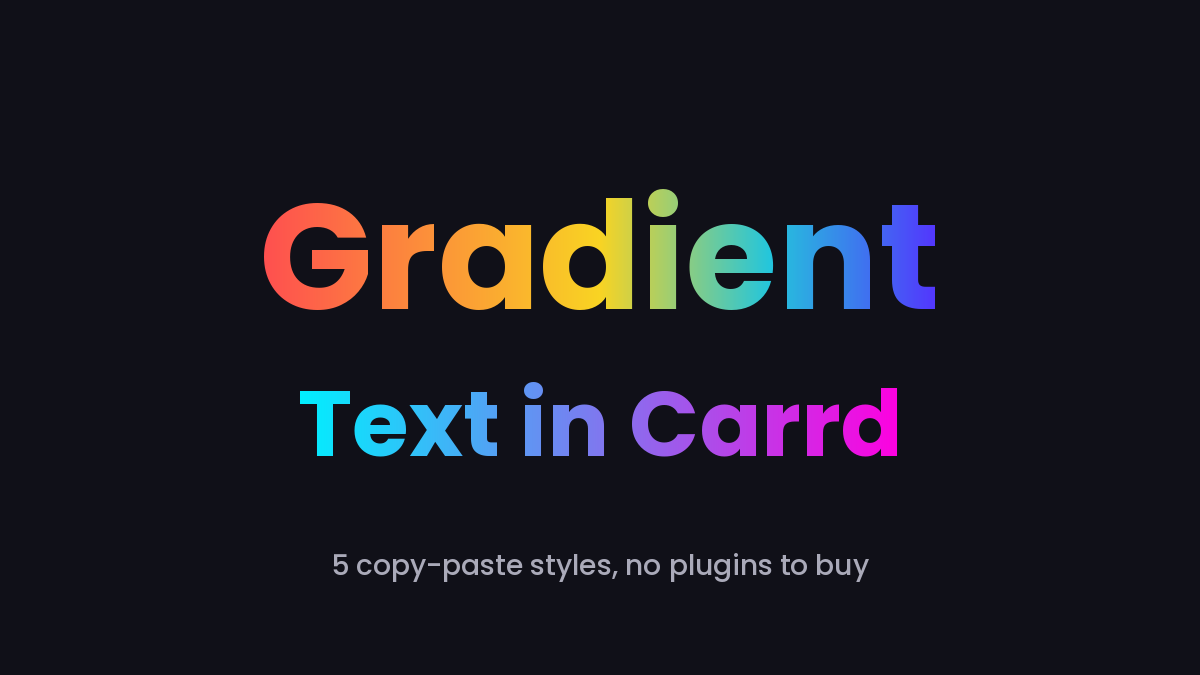
Carrd lets you pick any color for your text — but only one at a time. A gradient running through a headline? Not in the builder. The good news: gradient text is a few lines of CSS, and Carrd happily accepts those through an Embed element.
Below you’ll find five ready-made gradient styles. Each one comes with a preview and the complete code. Copy, paste, done.
Who is this for?
- Anyone who wants headlines with more pop than a single flat color
- Aesthetic sites, portfolios, product pages — gradients fit almost any style, from neon to gold
- You need Carrd Pro Standard or higher for the Embed element (Carrd’s custom code docs), and Pro Plus if you want to apply styles via class names — there’s an ID-based fallback for Pro Standard below
How it works (the 10-second version)
The technique is standard CSS: paint a linear-gradient as the element’s background, clip that background to the shape of the letters with background-clip: text, then make the letter fill itself transparent with -webkit-text-fill-color. The gradient shows through the letters. That last property also conveniently overrides whatever text color you’ve set in Carrd’s builder, so you don’t have to fight with it.
This works in every current browser — Chrome, Safari, Firefox, Edge.
Setting it up
1. Add the CSS to an Embed element
- In the Carrd builder, click Add Element → Embed.
- Set Type to Code.
- Set Style to Hidden and the location to Head — CSS belongs in the page head.
- Give it a Label like “Gradient Text”.
- Paste one (or several) of the style blocks below into the Code field.
2. Apply a class to your text element
- Select the Text element you want the gradient on.
- Open its Settings tab → Advanced.
- Under Classes, add the class name of the style you picked, e.g.
gradient-sunset.
ℹ️ Custom classes need Pro Plus. On Pro Standard, use your element’s ID instead: publish your site, right-click the headline, pick Inspect, and you’ll see something like <h2 id="text07">. Then replace .gradient-sunset with #text07 in the snippet — everything else stays the same.
3. Publish
Embed elements don’t render in the builder preview. Publish and check the live site.
The 5 styles
Each block below is complete on its own — it contains everything needed for that style. Class name and colors are in the code.
Sunset

<style>
/* Sunset gradient text — add class "gradient-sunset" to any Carrd text element */
.gradient-sunset {
  background: linear-gradient(90deg, #ff9a44, #ff5e7e, #a64dff);
  -webkit-background-clip: text;
  background-clip: text;
  -webkit-text-fill-color: transparent;
}
</style>
Ocean

<style>
/* Ocean gradient text — add class "gradient-ocean" to any Carrd text element */
.gradient-ocean {
  background: linear-gradient(90deg, #00c6a7, #0072ff);
  -webkit-background-clip: text;
  background-clip: text;
  -webkit-text-fill-color: transparent;
}
</style>
Neon
Works best on a dark background.

<style>
/* Neon gradient text — add class "gradient-neon" to any Carrd text element */
.gradient-neon {
  background: linear-gradient(90deg, #00f0ff, #ff00e0);
  -webkit-background-clip: text;
  background-clip: text;
  -webkit-text-fill-color: transparent;
}
</style>
Gold
For the luxury look — also happiest on dark backgrounds.

<style>
/* Gold gradient text — add class "gradient-gold" to any Carrd text element */
.gradient-gold {
  background: linear-gradient(105deg, #bf8b2e, #ffe79e, #d4a437);
  -webkit-background-clip: text;
  background-clip: text;
  -webkit-text-fill-color: transparent;
}
</style>
Rainbow

<style>
/* Rainbow gradient text — add class "gradient-rainbow" to any Carrd text element */
.gradient-rainbow {
  background: linear-gradient(90deg, #ff4e50, #fc913a, #f9d423, #24c6dc, #5433ff);
  -webkit-background-clip: text;
  background-clip: text;
  -webkit-text-fill-color: transparent;
}
</style>
Trick: gradient on a single word
You don’t have to gradient the whole headline. Carrd’s text editor has a highlight format (it renders as a <mark> tag under the hood). Scope the CSS to highlights and only the highlighted words get the gradient:
<style>
/* Gradient only on highlighted words — add class "gradient-mark" to the text element,
   then highlight the word(s) in Carrd's text editor */
.gradient-mark mark {
  background: linear-gradient(90deg, #ff9a44, #ff5e7e, #a64dff);
  -webkit-background-clip: text;
  background-clip: text;
  -webkit-text-fill-color: transparent;
}
</style>
This is how you get a plain headline with one glowing gradient word in the middle — a look you see on a lot of SaaS landing pages.
Bonus: animated gradient
Add movement by oversizing the gradient and sliding it back and forth. Subtle, but it makes headlines feel alive:
<style>
/* Animated gradient text — add class "gradient-animated" to any Carrd text element */
.gradient-animated {
  background: linear-gradient(-45deg, #ff4e50, #fc913a, #f9d423, #24c6dc, #5433ff);
  background-size: 300% 300%;
  -webkit-background-clip: text;
  background-clip: text;
  -webkit-text-fill-color: transparent;
  animation: gradient-move 6s ease infinite alternate;
}
@keyframes gradient-move {
  from { background-position: 0% 50%; }
  to   { background-position: 100% 50%; }
}
</style>
Pros and cons
Pros
- Free, pure CSS, no JavaScript, no external libraries
- Works with any font and size — change the gradient by editing the hex colors
- Several styles can live in one Embed element; apply different classes to different headlines
Cons
- Needs Carrd Pro Standard or higher (Pro Plus for the class-based setup)
- A gradient ignores Carrd’s color settings for that element — what you set in the builder won’t show
- Doesn’t display in the builder preview, only on the published site
TL;DR
Add an Embed element (Type: Code, Style: Hidden, location: Head), paste one of the five style blocks, add the matching class to your text element (Pro Plus) or swap the selector for your element’s ID (Pro Standard), publish. Use the mark variant to gradient a single highlighted word, or the animated block for a moving gradient.
Gradients pair well with a chunky font — we collected good candidates in The best cute Carrd fonts. For more letter-level mischief, see our wobbly headline text plugin. And if classes are new to you, start with Carrd element styles.
Check out more tips and tricks on our Carrd Blog.