
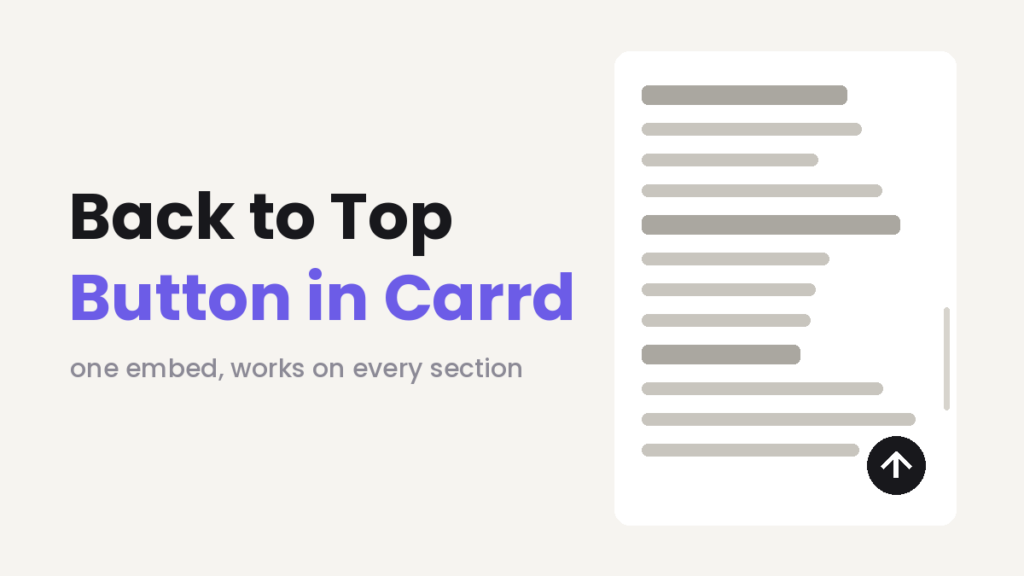
A Back to top button? In Carrd it does not exist as an element in the Builder. But long single page Carrd sites may need a way for visitors to go back up. When people scroll through your sections, they may get lost in the content. When they want to go back to the top nav they can scroll … scroll … scroll all the way back by hand. But it’s more convenient to have a back to top button. Carrd doesn’t have one – so here’s one small Carrd Plugin. It’s just a script in an Embed element that adds the button.
This one is a single copy-paste. No classes to assign, no extra setup. It even takes a custom image if the default arrow is too plain for your site.
TL;DR
Add an Embed element (Type: Code, Style: Hidden, location: Body End), paste the script, publish. The button fades in after 300px of scrolling and smooth-scrolls back up. Set IMAGE to any image URL to replace the default arrow, and adjust size, color, and position in the settings block.
Who is this for?
- Anyone with a Carrd site longer than two or three sections
- Especially useful for one-pagers with lots of content: portfolios, link collections, long-form sales pages
- You need Carrd Pro Standard or higher for the Embed element (Carrd’s custom code docs) — nothing beyond that, this plugin doesn’t use classes
What the plugin does
- Adds a round floating button in the bottom-right corner
- The button stays hidden until the visitor scrolls down (300px by default), then fades in
- Clicking it smooth-scrolls back to the top
- Shows a clean arrow by default – or any image you give it
- Works on desktop and mobile, no libraries, ~40 lines
How to set it up
- In the Carrd builder, click Add Element → Embed.
- Set Type to Code.
- Set Style to Hidden and the location to Body End — the script should run after the page content.
- Give it a Label like “Back to Top”.
- Paste this into the Code field:
<script>
(function () {
  // ----- settings ------------------------------------------------
  var IMAGE = '';        // image URL for the button, or '' for the default arrow
  var SIZE = 48;         // button size in px
  var SHOW_AFTER = 300;  // show button after scrolling this many px
  var COLOR = '#1f1f28'; // button background (ignored if IMAGE is set)
  // ----------------------------------------------------------------

  var btn = document.createElement('button');
  btn.id = 'back-to-top';
  btn.setAttribute('aria-label', 'Back to top');
  btn.innerHTML = IMAGE
    ? '<img src="' + IMAGE + '" alt="" style="width:100%;height:100%;display:block;border-radius:inherit;object-fit:cover;">'
    : '<svg viewBox="0 0 24 24" width="60%" height="60%" fill="none" stroke="currentColor" stroke-width="2.5" stroke-linecap="round" stroke-linejoin="round"><path d="M12 19V5M5 12l7-7 7 7"/></svg>';

  var css = document.createElement('style');
  css.textContent =
    '#back-to-top{position:fixed;right:24px;bottom:24px;width:' + SIZE + 'px;height:' + SIZE + 'px;' +
    'border:none;border-radius:50%;background:' + (IMAGE ? 'transparent' : COLOR) + ';color:#fff;' +
    'cursor:pointer;display:flex;align-items:center;justify-content:center;padding:0;' +
    'box-shadow:0 4px 14px rgba(0,0,0,.25);z-index:9999;' +
    'opacity:0;visibility:hidden;transform:translateY(8px);' +
    'transition:opacity .25s,transform .25s,visibility .25s;}' +
    '#back-to-top.visible{opacity:1;visibility:visible;transform:none;}';

  document.head.appendChild(css);
  document.body.appendChild(btn);

  btn.addEventListener('click', function () {
    window.scrollTo({ top: 0, behavior: 'smooth' });
  });

  window.addEventListener('scroll', function () {
    btn.classList.toggle('visible', window.scrollY > SHOW_AFTER);
  }, { passive: true });
})();
</script>- Publish. Embed elements don’t render in the builder preview — check the live site and scroll down a bit.
Boom. There’s your button.
Using your own image
Set the IMAGE setting at the top of the script to any image URL:
var IMAGE = 'https://yoursite.com/assets/images/image01.png';Two easy ways to get a URL:
- An image already on your site: open your published Carrd site, right-click the image, Copy Image Address. (Keep that image element on the site — if you delete it, the file disappears on the next publish.)
- Any hosted image from elsewhere on the web that you have the rights to use.
The image is clipped into the round button automatically. Square images work best.
Tweaking it
All knobs sit in the settings block at the top:
SIZE— make it bigger for touch-heavy audiences (56–64 is comfortable on mobile)SHOW_AFTER— how far down (in pixels) before the button appears; raise it if it shows up too eagerlyCOLOR— the circle’s background color; match it to your site’s accent color- Position: change
right:24px;bottom:24pxin the CSS string to move it, e.g.left:24pxfor bottom-left
Using an AI assistant?
This tutorial is written to be AI-friendly. If you customize your Carrd site with Claude, ChatGPT, or similar, paste this prompt together with the code block above:
Add a back to top button to my Carrd site. Create an Embed element with Type “Code”, Style “Hidden”, location “Body End”, containing the script below. Then adjust the settings block for me: [describe your size, color, position, and image wishes here]. The script is self-contained — it injects its own button and CSS, no classes or extra elements needed on my side.
Pros and cons
Pros
- One paste, zero configuration required — no classes, so no Pro Plus needed
- Custom image support for sites with personality
- Accessible (proper button element with an aria-label) and dependency-free
Cons
- Needs Carrd Pro Standard or higher for custom code
- Doesn’t show in the builder preview, only on the published site
- On very short pages it never appears — which is correct behavior, but don’t be surprised
More small Carrd upgrades like this one: our wobbly headline text plugin gives your headings a playful hand-made look with the same embed technique.
Check out more tips and tricks on our Carrd Blog.